Why CS Students Should Learn Linux Early with Fedora
1. The Moment Linux Became Real
I still remember the first time GRUB booted cleanly and I saw "Fedora Linux" sitting right next to "Windows Boot Manager" on the same menu. It was the middle of my second year, my laptop was an HP that had spent the last twenty minutes making me question every life choice that led to this moment, and I had just spammed the Esc key like it owed me money because I couldn't remember whether HP wanted F9 or F10 for the boot menu. It turned out to be F9. It's always F9 on HP, F12 on Dell and Lenovo, and usually F8 or Esc on Asus, and I have never once remembered this on the first try no matter how many machines I've set up since.
That reboot is the moment Linux stopped being an abstract thing I read about in course slides and became a place I actually worked. Before that, "Linux" meant SSH-ing into a university server for an OS assignment, typing the three commands the TA gave us, and closing the terminal as fast as possible. After that, it meant a desktop I opened every morning, a terminal I lived in, and a system where permissions, processes, and package managers weren't exam trivia — they were just how my laptop worked now.
If you're a CS student on Windows right now, wondering whether it's worth the hassle, here's my honest pitch: start before a production incident forces you to. You don't have to abandon Windows. You don't need to become a Linux purist who won't shut up about it at parties. But putting in regular hours inside a real Linux environment now means that SSH, file permissions, systemd, containers, and shell scripting stop being scary later — they just become Tuesday.
2. Where You'll Actually Feel This Pay Off
Most backend, DevOps, cloud, and infrastructure roles eventually put you in front of a Linux box, whether that's Ubuntu Server, Amazon Linux, Debian, RHEL, or Rocky Linux. The exact distro on the job posting almost doesn't matter, because the underlying skills — reading logs, understanding a systemd unit file, knowing why a service won't bind to a port — transfer across all of them. You can build these skills through WSL2, a VM, or a cloud instance you SSH into, and all of those are legitimate paths. What a native Linux desktop gives you that those don't is repetition without friction: you're not "doing a Linux exercise," you're just fixing your own audio driver at 11pm because you want to listen to music, and that kind of incidental troubleshooting teaches you more than a tutorial ever will.
3. Why I'd Point a Beginner at Fedora Specifically
Ubuntu is the default recommendation for a reason, and I'm not here to talk anyone out of it — it has fantastic documentation, a huge community, and it's genuinely everywhere in the cloud. My argument is narrower than "Ubuntu bad." It's that Fedora is a particularly good place to learn and experiment, partly because it moves faster than Ubuntu's LTS releases. Newer kernels, newer compilers, newer language runtimes land on Fedora sooner, which made it more fun for me to poke at new tooling and get my newer hardware working without fighting outdated drivers.
There's also a practical career angle. Fedora nudges you toward things that show up constantly in enterprise Linux environments: dnf and RPM packaging, SELinux and how it differs from just "permissions," systemd and journalctl for actually reading what your system is doing, and Podman for rootless containers. It's effectively a friendlier on-ramp to the whole Red Hat family — RHEL, CentOS Stream, Rocky, AlmaLinux — which shows up a lot in enterprise shops. Ubuntu, meanwhile, has its own well-worn ecosystem: apt and DEB packages, AppArmor instead of SELinux, and a Docker-centric tutorial culture that most beginners run into first.
None of this locks you in. The commands change between distros, but the mental models don't: bash and shell scripting, file permissions and ownership, processes and signals, SSH, networking basics, systemd services, reading logs, containers, reverse proxies, and the general skill of troubleshooting a broken deployment. Think of Fedora as the lab and Ubuntu as the production floor you might eventually work on. Learning both just means you're not precious about either one.
4. You Don't Have to Dual-Boot to Get This
Dual-booting is not the only door in, and for a lot of people it's not even the right one. A dual boot gives you native performance and forces daily immersion, which is exactly what made it work for me — but it also means partitioning a real disk with real consequences if something goes wrong. WSL2 is the lower-stakes option if you want Linux tools without leaving Windows day-to-day. A VM is safer still, though it can feel sluggish if you're short on RAM. A cloud VM is genuinely great for learning SSH and server administration specifically, since that's closer to what a job will actually ask of you. And if you happen to have a spare SSD or an old laptop lying around, that's honestly the easiest low-risk setup of all.
If you're comfortable partitioning a disk and you actually have backups (not "I'll do it after," actual backups), dual-booting Fedora is a rewarding way to learn. If you're not there yet, start with WSL2 or a VM and dual-boot later once you're less nervous about it.
5. Setting Up the Dual Boot, Without Losing Your Windows Install
Before you touch a partition table, back up anything you can't afford to lose, make a Windows recovery drive if you can, and write down your BitLocker recovery key somewhere that isn't the machine you're about to repartition. Keep the laptop plugged into power for the whole process — this is not the moment to find out your battery reporting was optimistic.
Here's roughly the path I followed, cleaned up from years of doing this more times than I'd like to admit:
• Confirm Windows is running UEFI with a GPT partition layout — check this in System Information (msinfo32) before you do anything else.
• Back up your files, your repos, and specifically your BitLocker recovery key.
• Turn off Windows Fast Startup in Control Panel → Power Options. This one trips people up constantly — Fast Startup leaves your NTFS partition in a hibernated state that Linux can't safely mount, and skipping this step is how people end up with a Windows partition Linux refuses to touch.
• Shrink your Windows partition in Disk Management (diskmgmt.msc) to free up at least 50GB, more like 80–100GB+ if you're planning to run IDEs, containers, databases, or anything local-model-shaped.
• Flash Fedora Workstation onto an 8GB+ USB drive using Fedora Media Writer or Rufus, and verify the ISO checksum if you're the type who sleeps better that way.
• Reboot, spam your boot-menu key the second the logo appears (Esc then F9 on HP, F12 on Dell/Lenovo, F8 or Esc on Asus), and pick the USB drive from the UEFI boot options.
• Launch the installer, point it at your target disk, and use Automatic Partitioning on the unallocated space — double-check the target disk name before you confirm, because there is no undo here.
• Reboot into your new GRUB menu, which will now offer you a choice between Fedora Linux and Windows Boot Manager every time you power on.
None of this is completely risk-free. Partitioning mistakes, firmware quirks, BitLocker weirdness, graphics driver issues, or a stubborn bootloader can all still go wrong, which is exactly why the backup step isn't optional. Modern Fedora installers handle UEFI and Secure Boot well out of the box — I've gone through this on Fedora 39 and later releases, and the automatic Windows Boot Manager detection and Btrfs setup has gotten noticeably smoother each time. Don't turn off Secure Boot unless something specific forces your hand; it's rarely necessary.
"Spamming Esc on my HP laptop to hit F9 was the scariest 5 seconds of my 2nd-year CS experience. But once GRUB booted Fedora cleanly alongside Windows, everything clicked."
6. A Small Habit Worth Picking Up: fastfetch
This one's just a nice-to-have, not a productivity hack. fastfetch prints your distro, kernel, desktop environment, CPU, memory, and a few other details in a clean summary the moment you open a terminal. It won't make your system faster and it's not required for anything — I just like glancing at it after updates or when I'm helping someone else debug their setup, because it gives you a quick sanity check of what you're actually running.
On my own 8GB laptop this left plenty of room for an IDE, a browser with too many tabs, a terminal, and whatever local tooling I was messing with that week. Your mileage depends heavily on your hardware, background services, and how many browser tabs you're pretending you'll get back to — don't treat one screenshot from one machine as a universal benchmark.
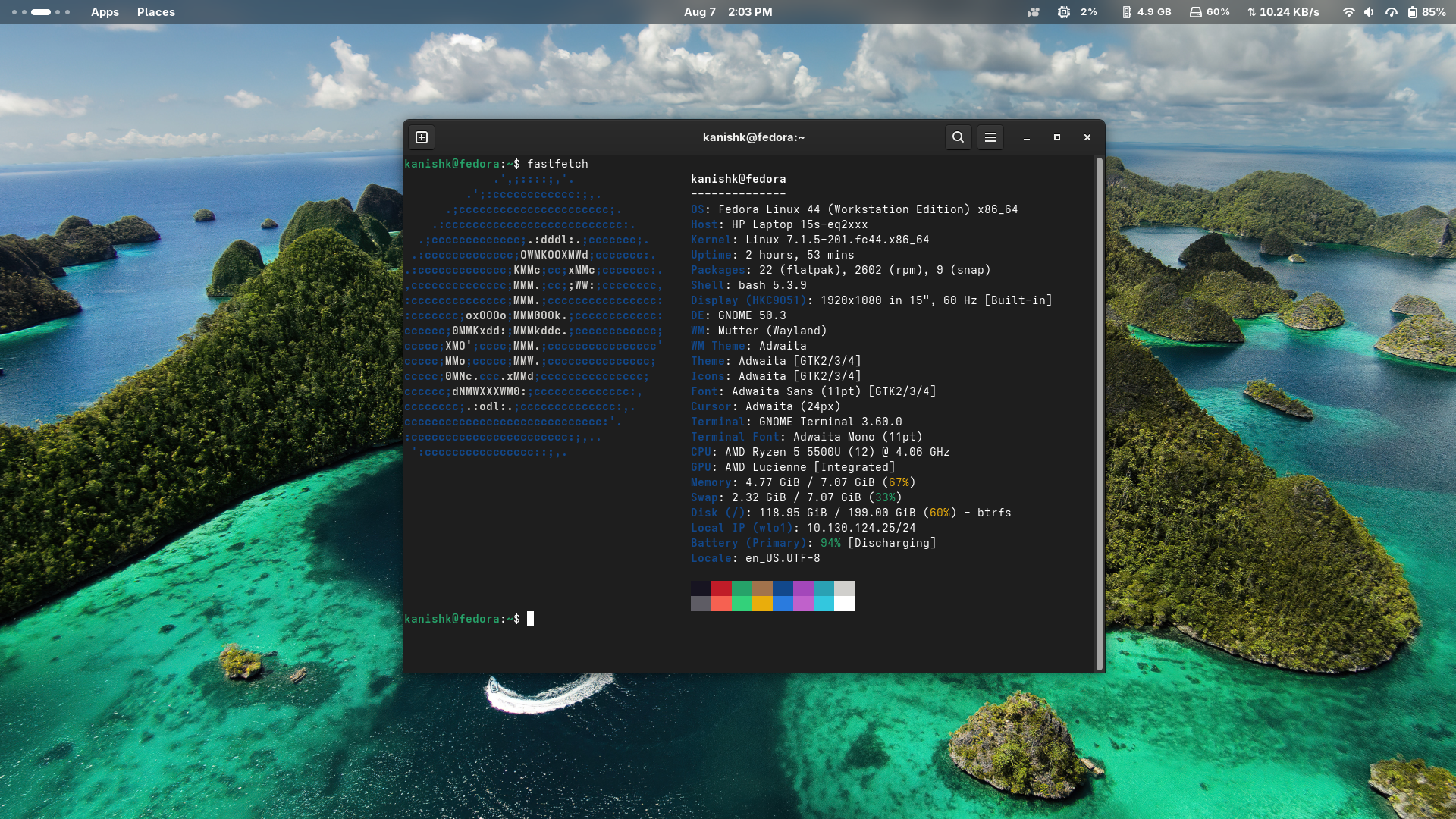
Figure: Fedora Workstation terminal showing fastfetch system information.
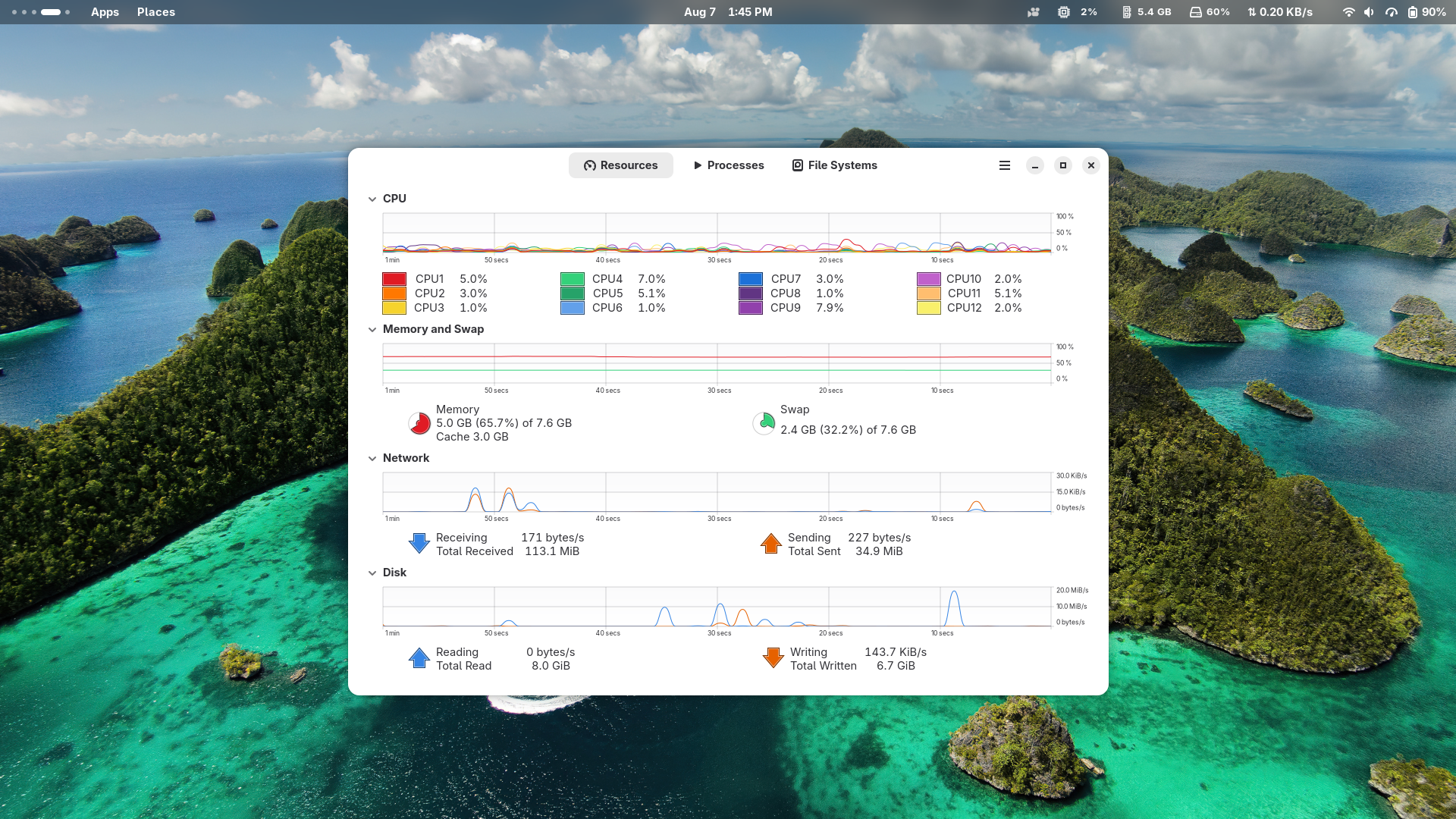
Figure: Fedora system monitor showing CPU and memory usage during light desktop development work.
sudo dnf install fastfetch -y
fastfetch
7. Keeping Things Reproducible Once You Leave Fedora's Desktop
Fedora gives you newer packages, but "newer" and "correct for this project" aren't the same thing, and that gap is exactly where things break when you move from your Fedora laptop to an Ubuntu server. A few habits that saved me repeatedly: pin the runtime versions that actually matter for a given project, lean on language-specific version managers (SDK managers for Java, virtual environments for Python, nvm for Node) instead of whatever dnf happens to ship, and write your dependencies down in the README instead of trusting future-you to remember. Dockerfiles or Podmanfiles help a lot here too, and if a project needs a genuinely consistent environment across machines, a dev container is worth the setup time. When Ubuntu is where the project is actually going to live, test the deployment in an Ubuntu-based container or staging box before you assume it'll just work.
Do that, and you get to keep Fedora's modern workstation experience without your projects quietly depending on package versions that don't exist anywhere else.
8. Where This Leaves You
Every CS student benefits from real Linux time before graduation, and Fedora is a solid way to get it — a modern desktop paired with SELinux, systemd, and rootless containers gives you exposure to things that matter well beyond a single class. That doesn't make Ubuntu the wrong choice, and it definitely doesn't mean everyone needs to dual-boot. Ubuntu might well be what you're deploying to eventually, and the move from Fedora to Ubuntu is manageable precisely because the concepts underneath both distros are the same.
Keep Windows around for whatever it's still better at. Use Fedora as the place you actually learn. Pick up Ubuntu when a job or a deployment target asks you to. None of this is about picking a side — it's about reaching a point where a new server, an unfamiliar package manager, or a 2am production issue doesn't make your stomach drop the way it used to.
Future-you, debugging a deployment at 2am, will thank present-you for putting in the hours now.